HOME PT SUPPORT
Getting Started with HOME PT
Review the timer flow, score system, and setup details for HOME PT in one place.
1. Timer Basics
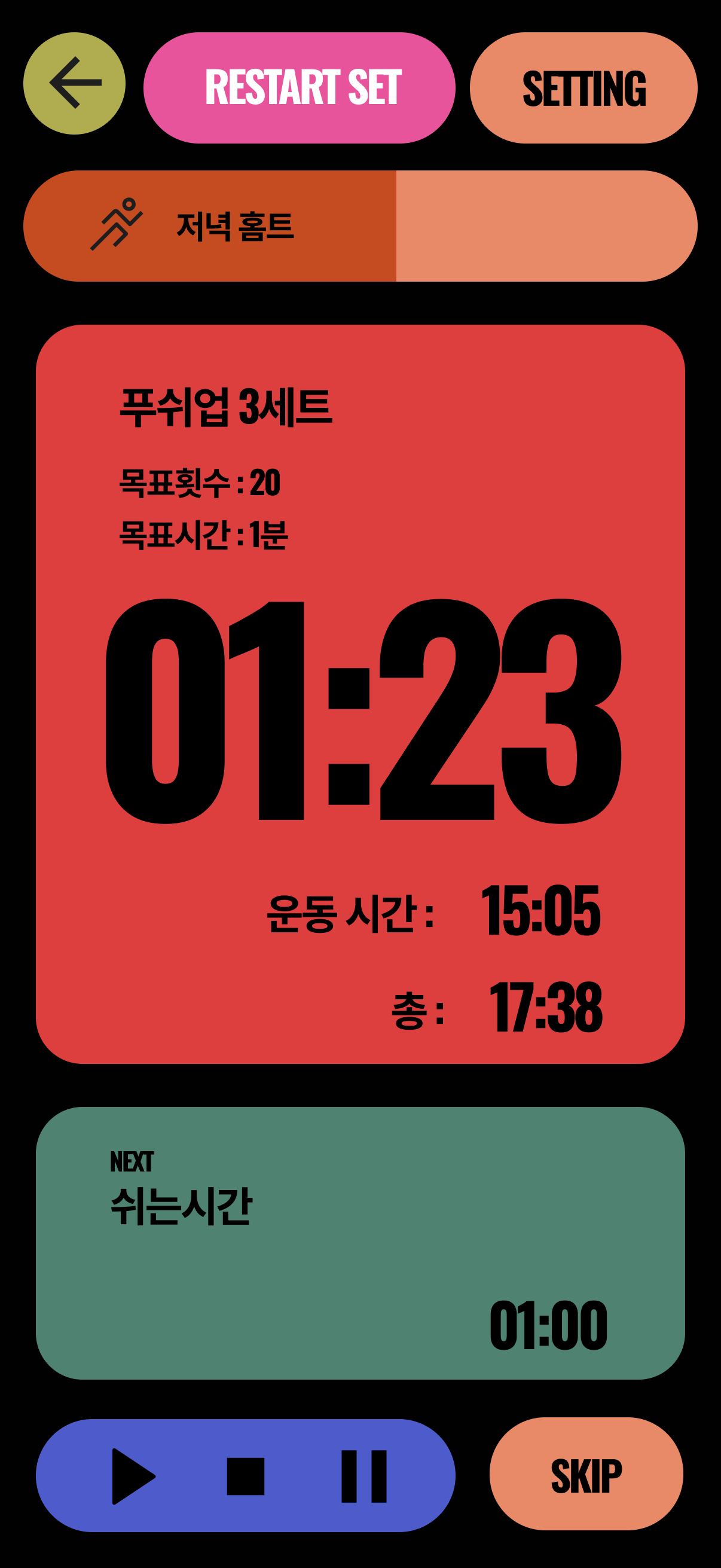
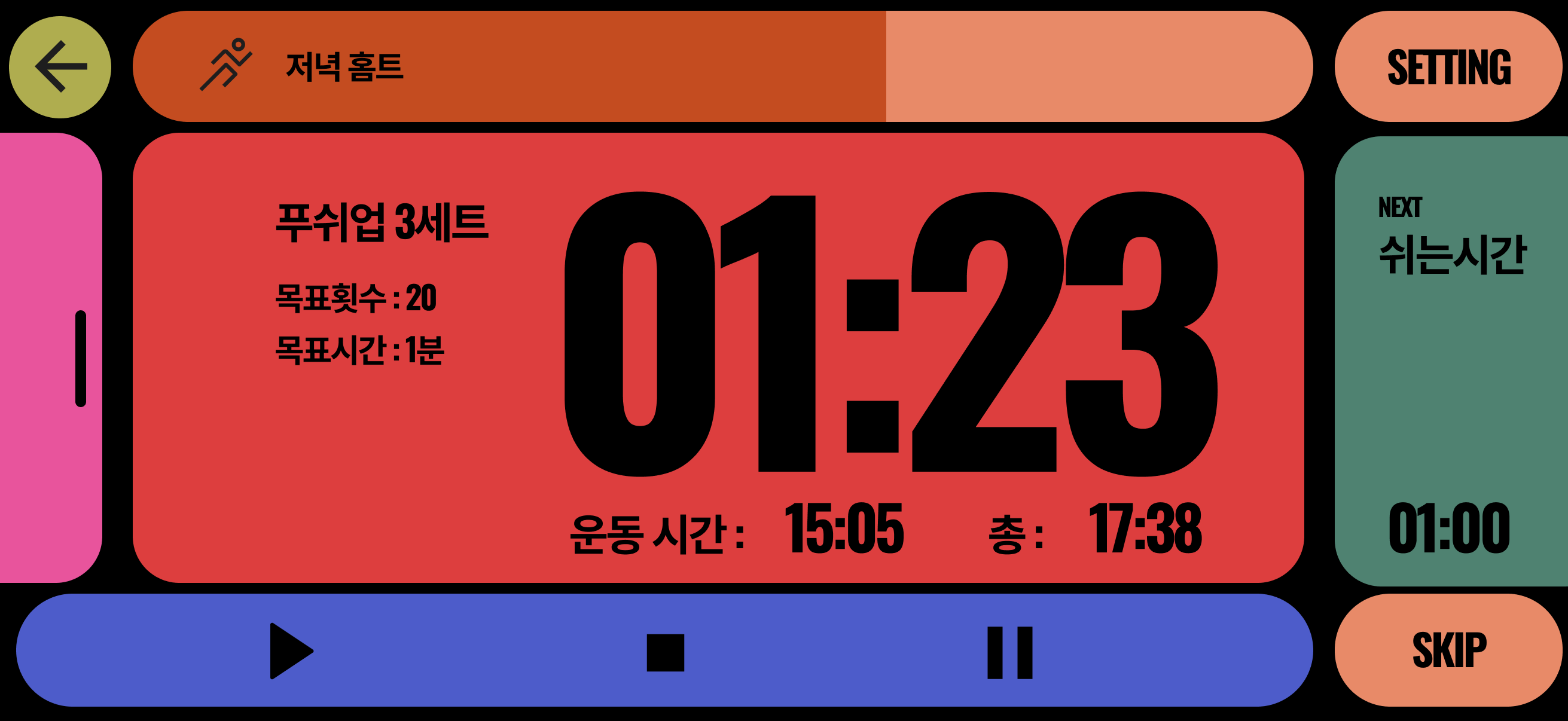
HOME PT is designed to present timer information as clearly as possible. The large number in the center shows the time for the current step, while the lower area of the card shows the cumulative elapsed time for the routine.
- Workout Time: Shows the accumulated exercise time since the routine started.
- Total Time: Shows the cumulative elapsed time until the routine finishes, including rest periods.
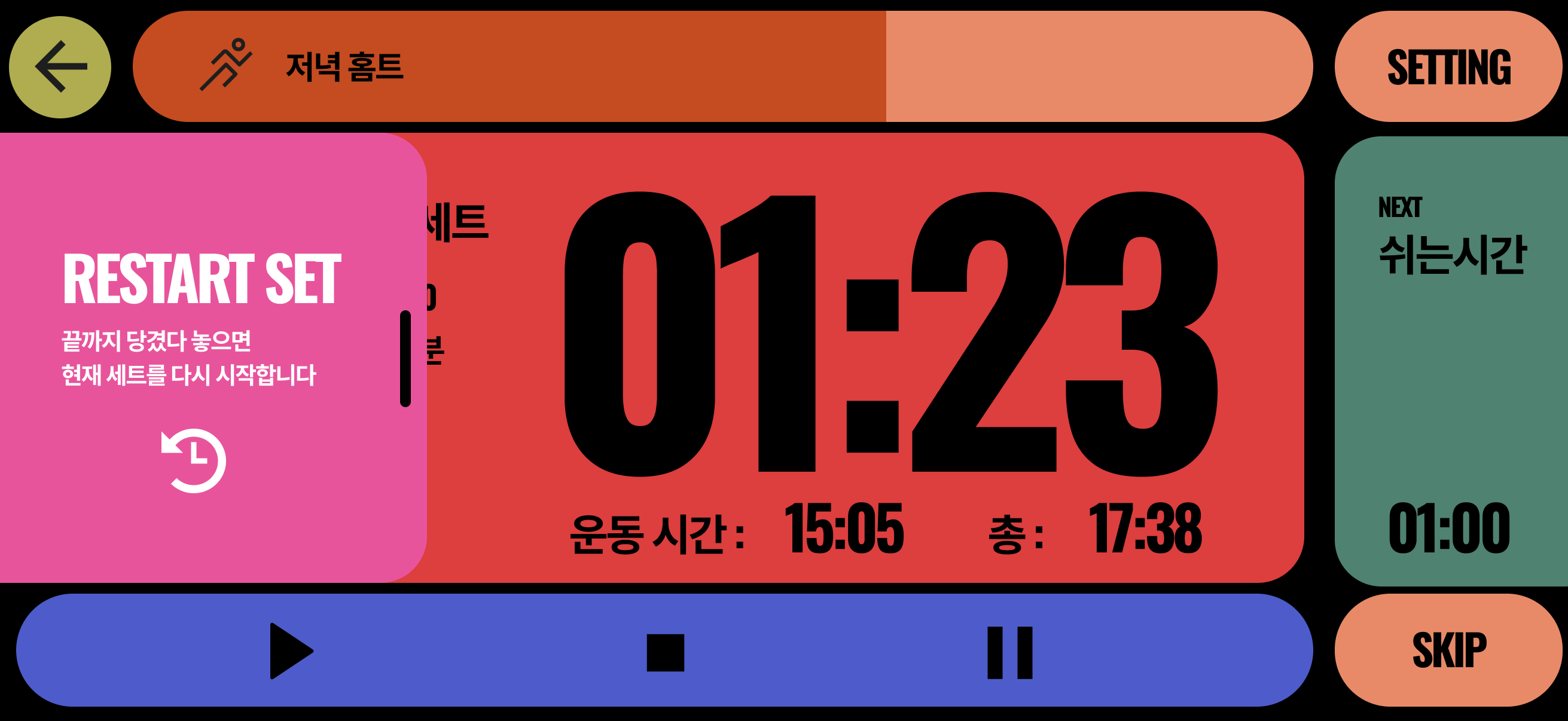
- Restart Set: If you stop unexpectedly or mess up the beginning of a set, you can restart only the current set instead of stopping the entire timer.
2. Creating a Routine
The first step is to create a routine that matches your training goal. FREE users can create up to two routines.
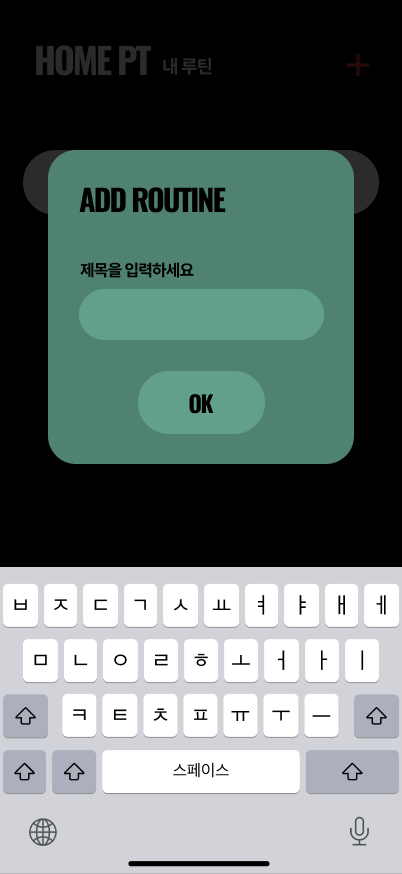
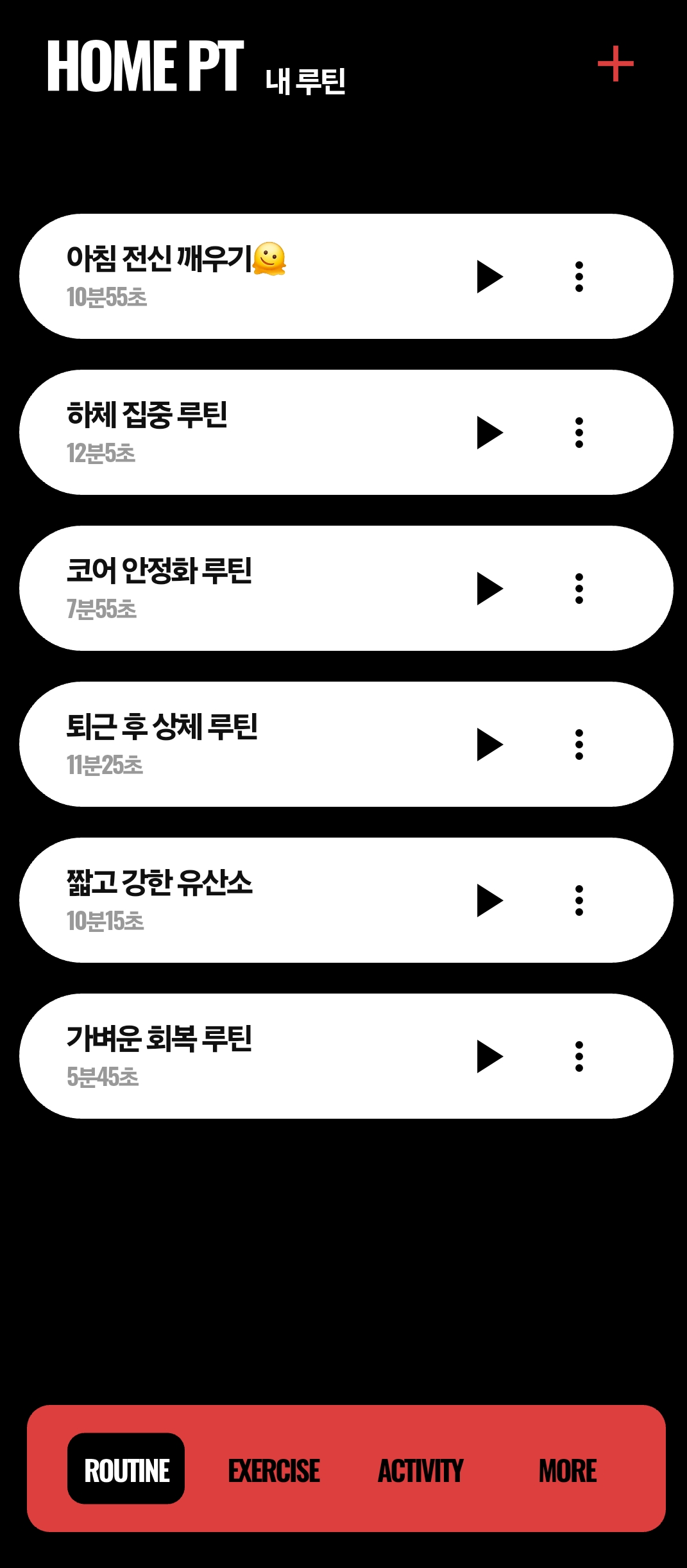
- Tap the [+] button at the bottom right of the Routine tab to create a new routine.
- Create Routine: At the current creation step, you enter a routine title and save it.
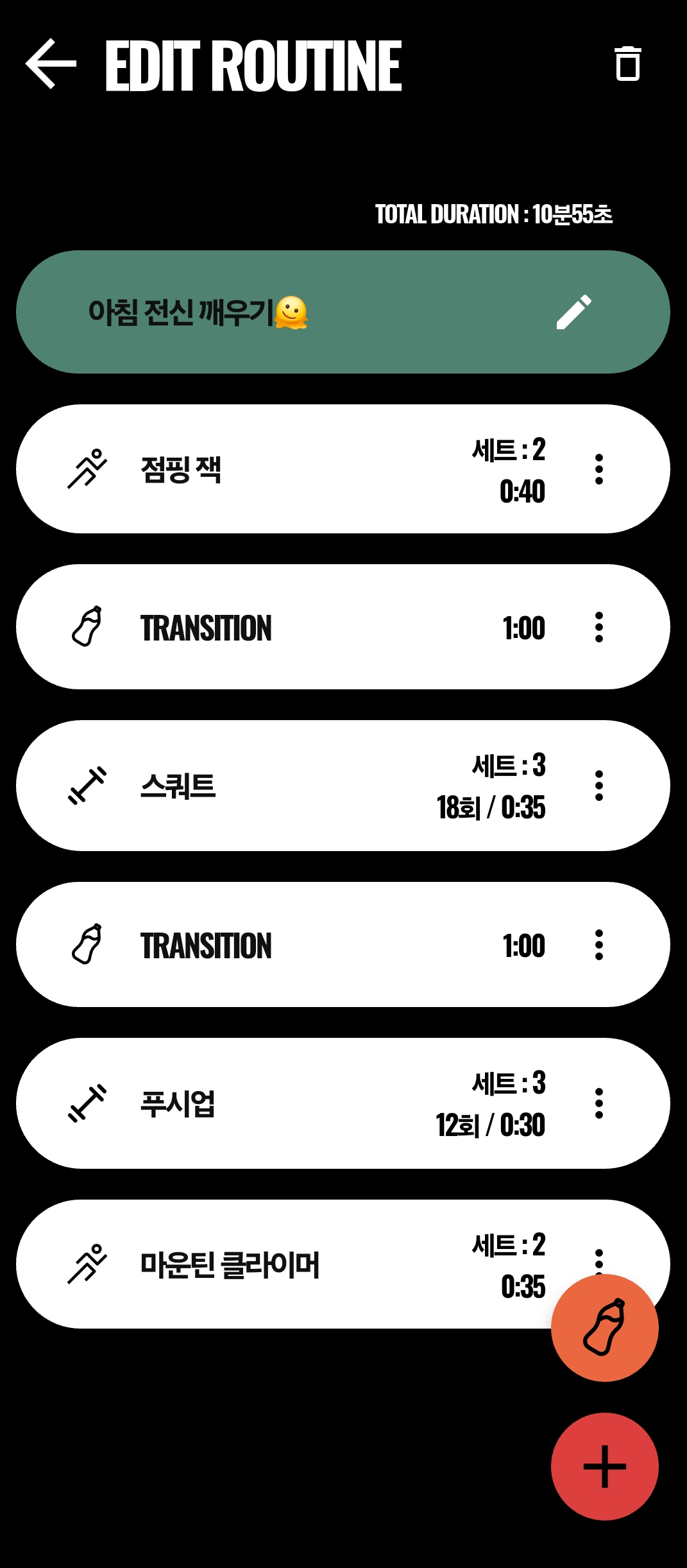
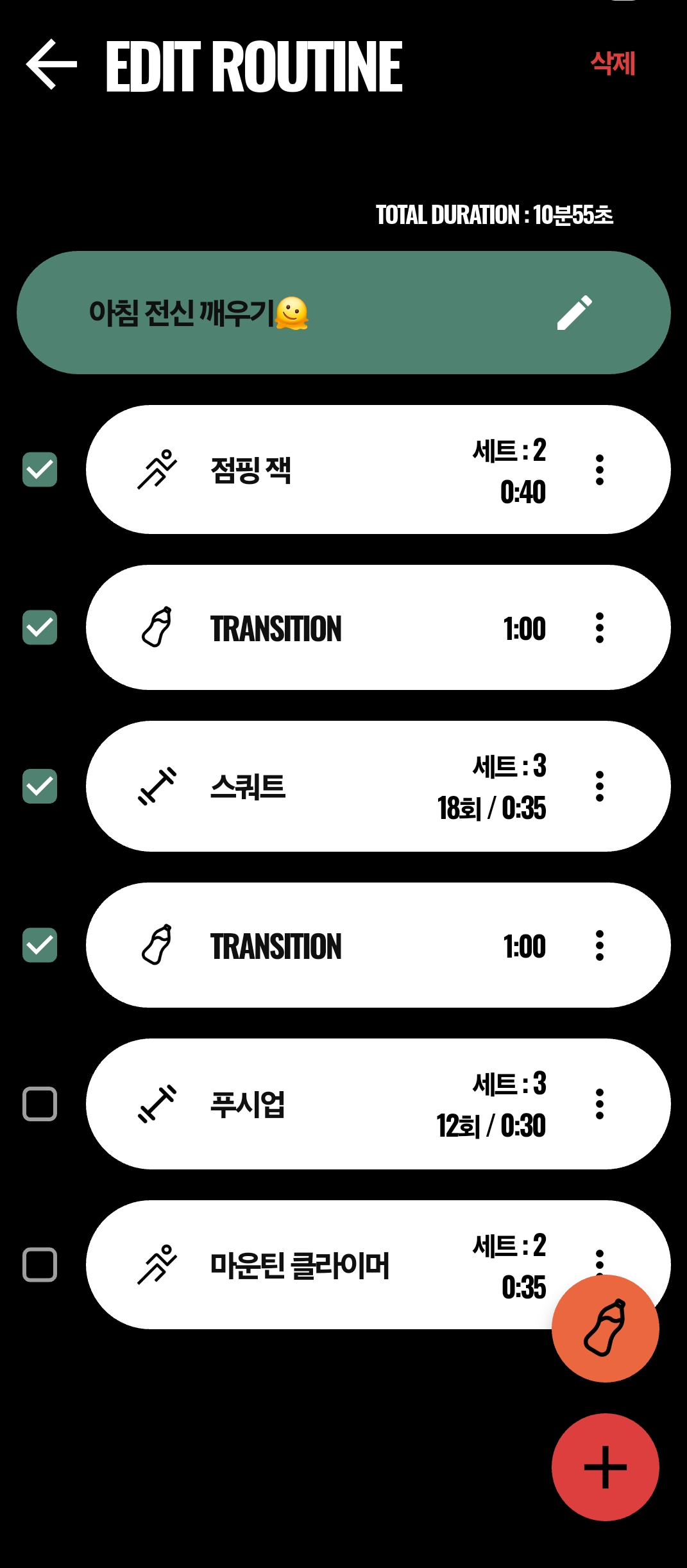
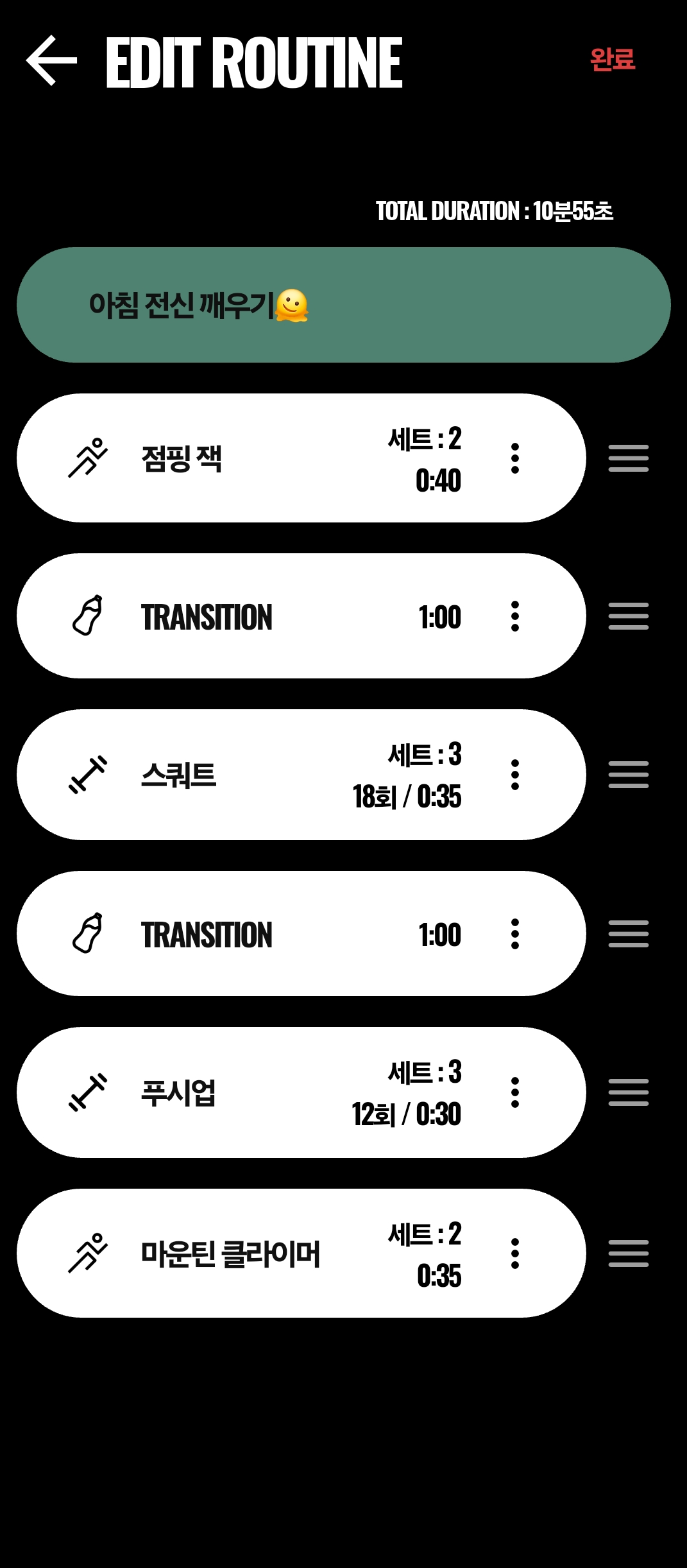
- Edit Routine: After creation, the editing screen lets you add exercises, reorder items, insert TRANSITION steps, and adjust targets.
3. Adding Exercises (Reps vs Time)
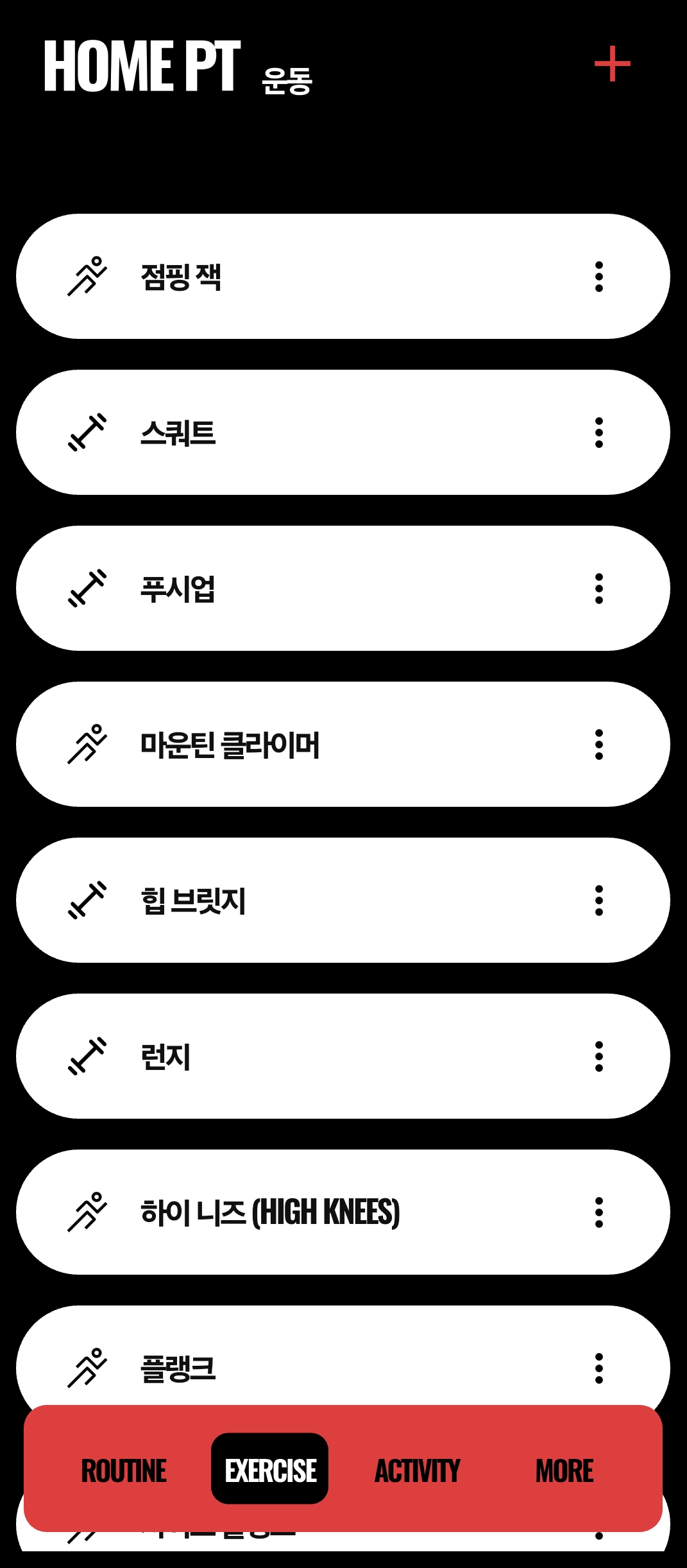
You first register exercises in the Exercise tab library and then add them from the routine editing screen. HOME PT supports two clear goal types for every exercise.
- Timer Goal: Best for exercises that last for a set duration, such as a 60-second plank or a 30-second rest. The timer moves forward automatically until the target time ends.
- Count Goal: Best for exercises based on repetitions, such as 15 squats or 10 push-ups. The timer counts upward and waits until you finish the reps and manually move on by tapping the screen or using a voice command. (You can also configure it to move on automatically.)
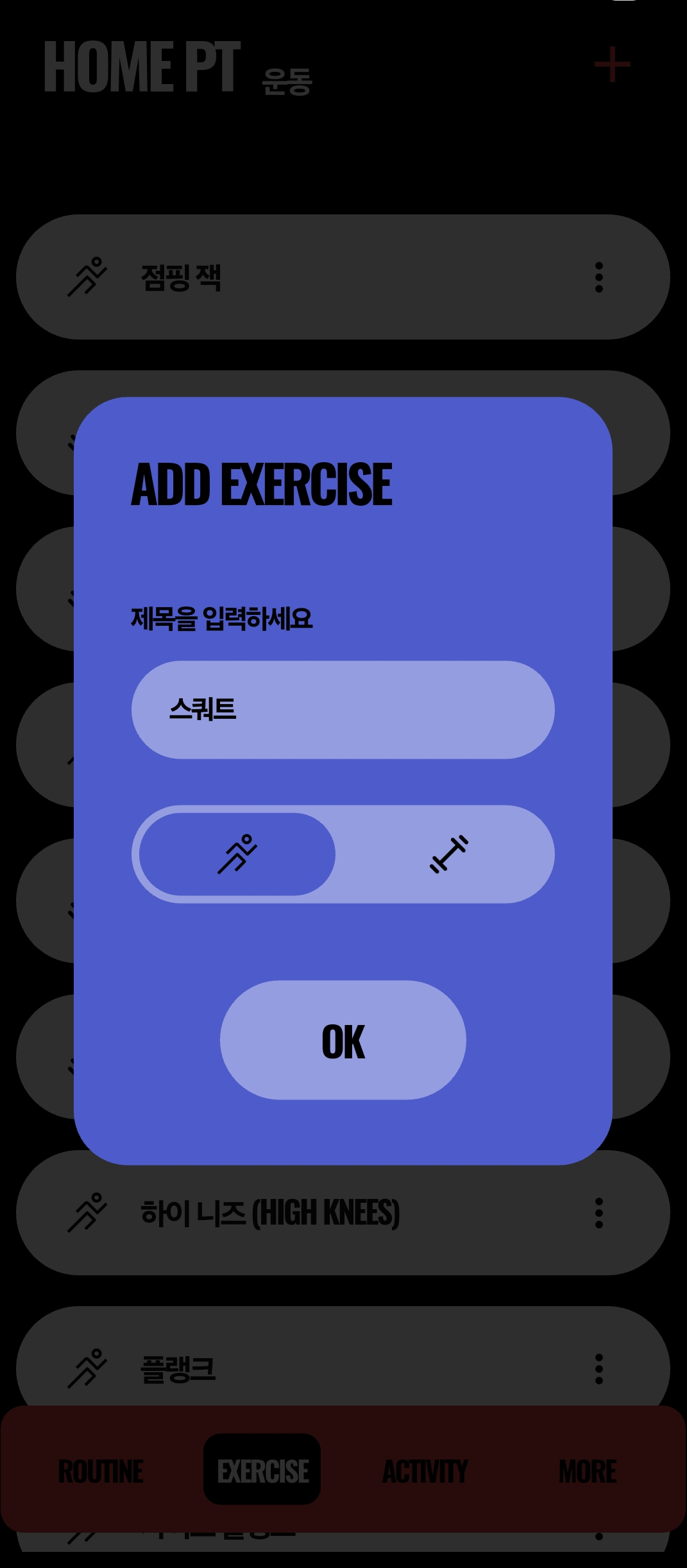
Timed exercise
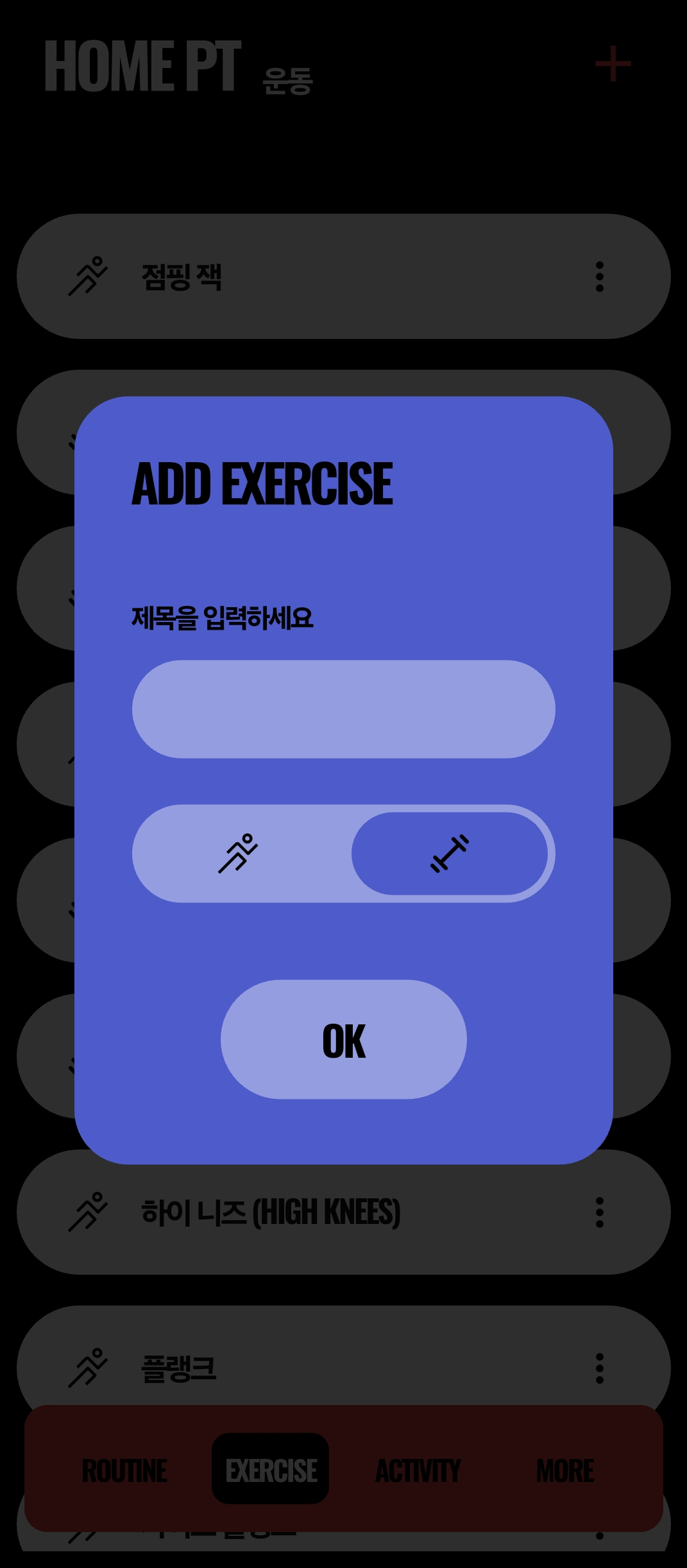
Rep-based exercise
4. Editing Routine Details
The routine editing mode gives you precise control over timing and flow.
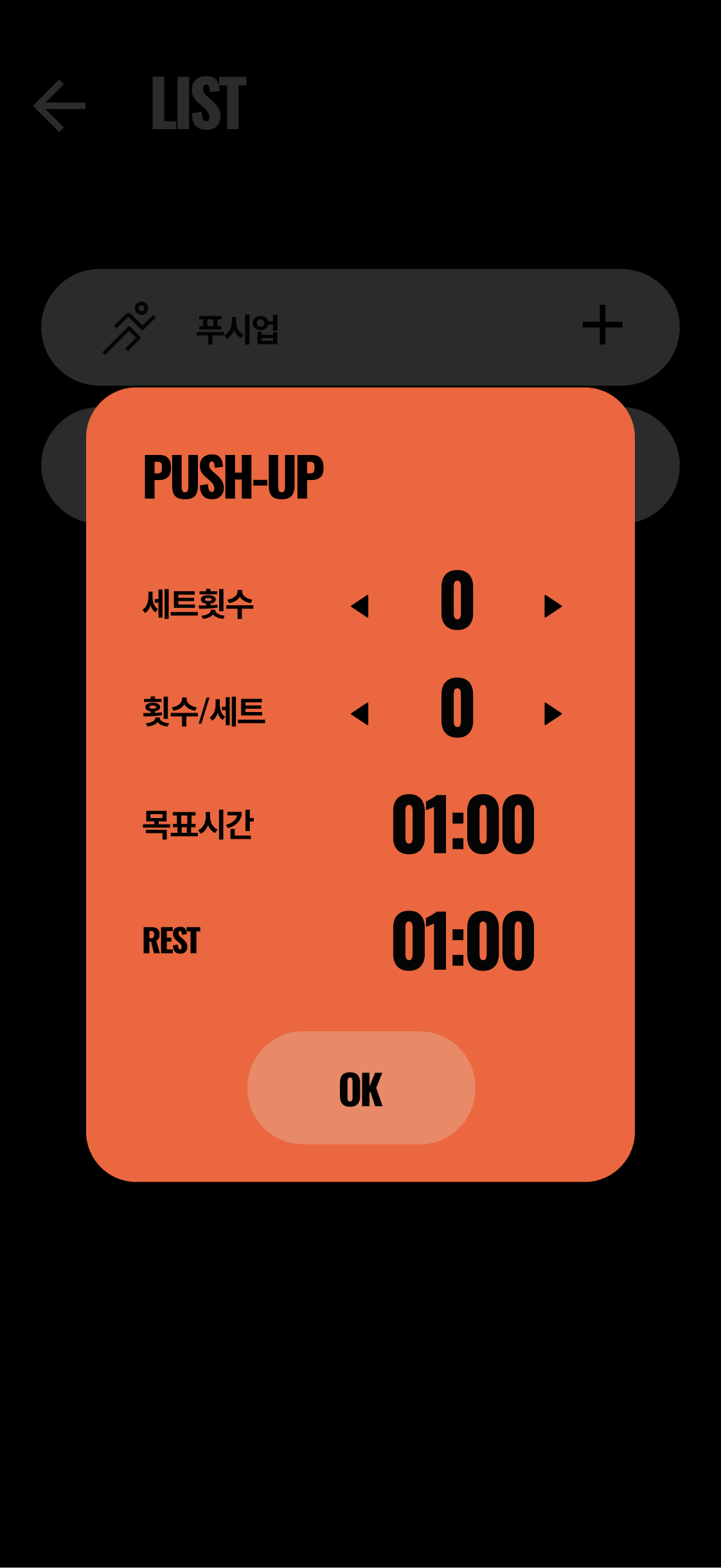
- Rest Time: You can set a default rest time inserted between exercises or repeated sets.
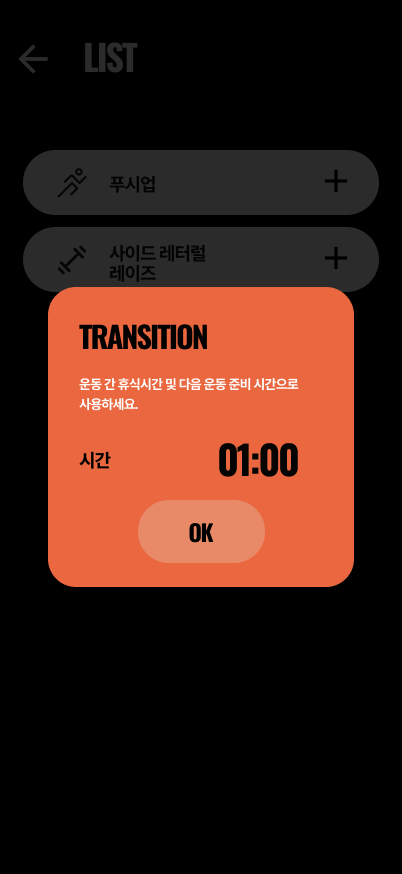
- TRANSITION: Use the water-bottle icon button to insert TRANSITION steps automatically. They can be used as rest time between exercises or preparation time before the next movement. When editing a TRANSITION step, the All / Only toggle lets you apply the change to matching system steps in the same routine.
- Total Time Calculation: The routine recalculates total time by including exercise time, rest between sets, and all TRANSITION steps.
Additional total-time rules:
- If the routine goes directly from one exercise to another without a TRANSITION step, REST time is inserted instead.
- If a TRANSITION step exists, the final REST time of the first exercise is ignored.
5. Editing Exercises Within a Routine
You can change the order of exercises and update the details of existing items at any time.
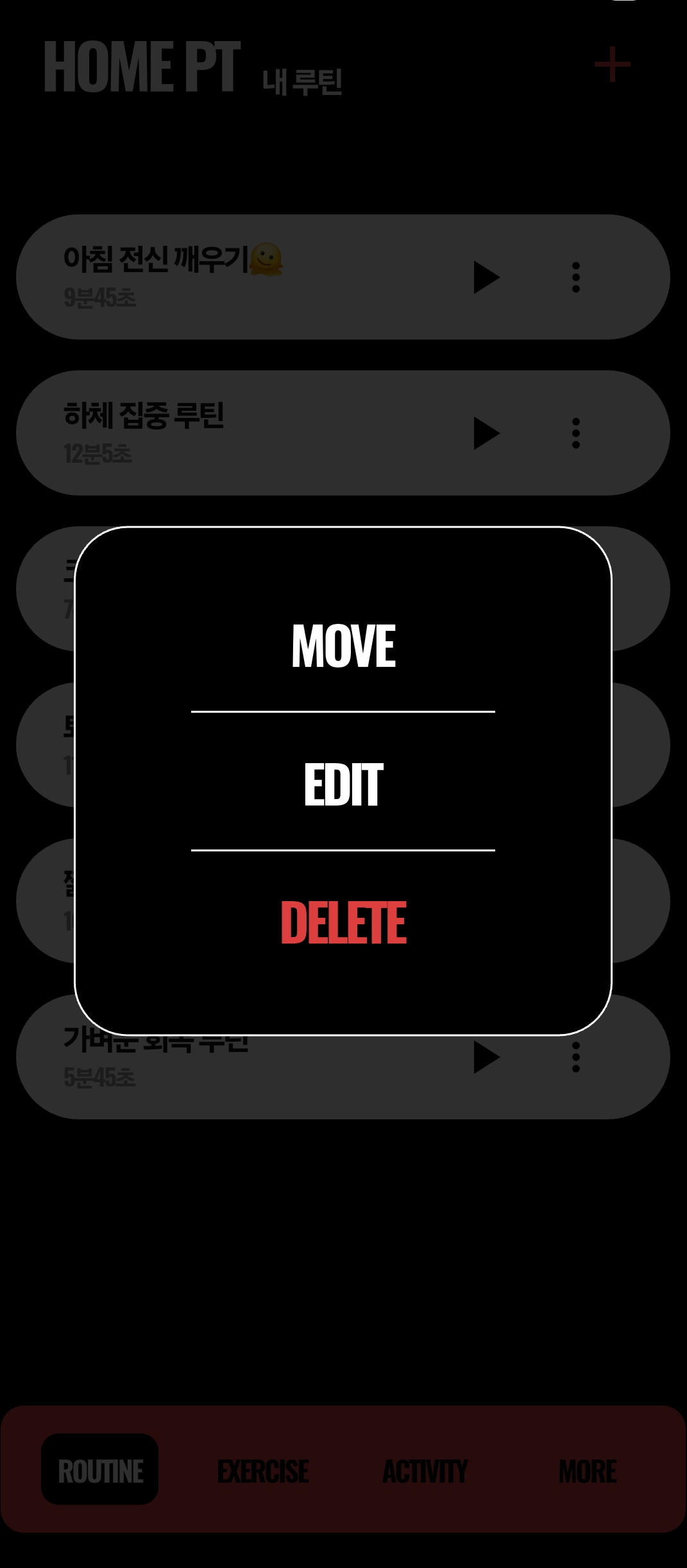
- Open the more menu on each exercise card to choose Edit, Move, or Delete.
- Reordering (Move): Tapping Move switches the list into reordering mode, where you can drag using the handle.
- Batch Deletion (Delete): The Delete icon opens selection mode so you can remove multiple exercises at once.
- Insert TRANSITION: Tapping the Transition button inserts a system step automatically between exercises.
6. Activity and Efficiency Score
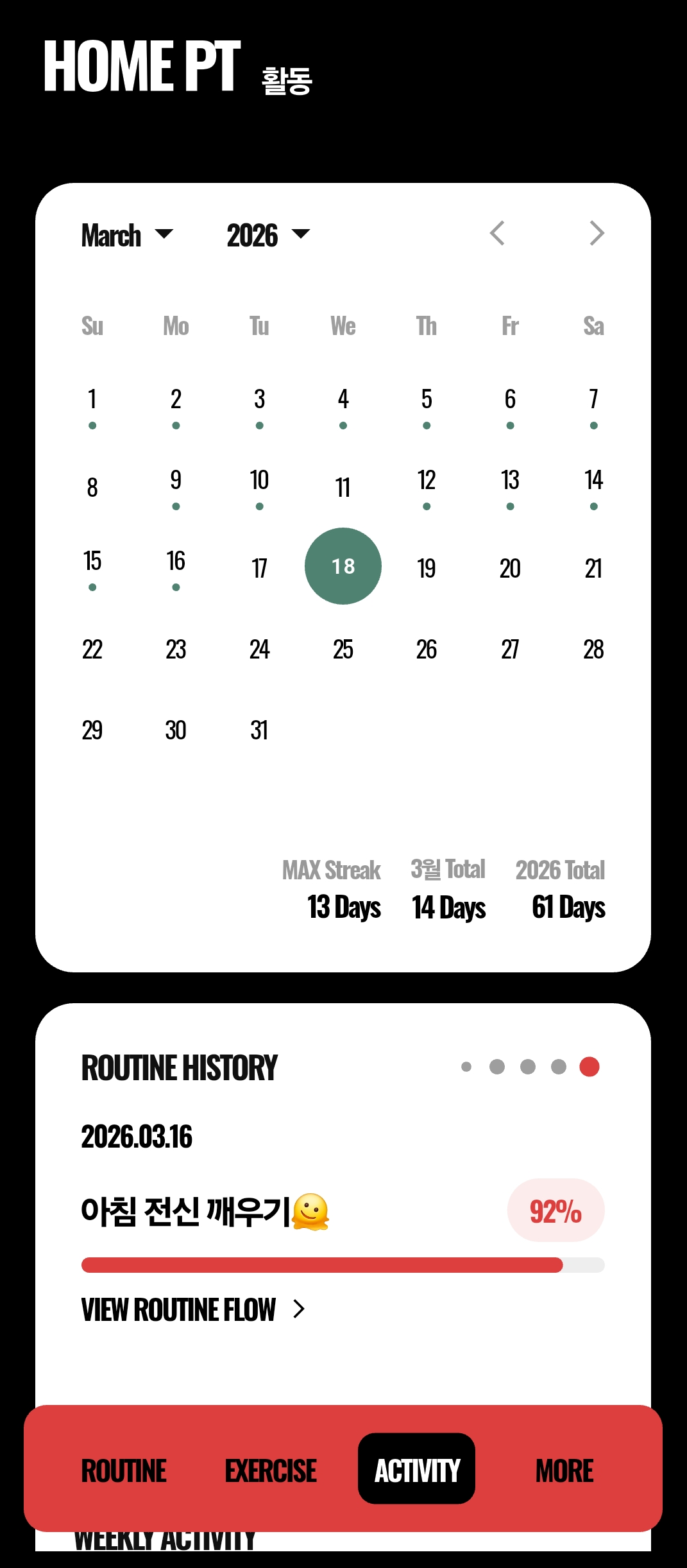
HOME PT's Efficiency Score turns your consistency and effort into measurable statistics.
- Screen layout: Calendar, weekly activity, routine history, and exercise rankings are all shown in one view.
- Weekly Activity: Compares your workout time this week against last week.
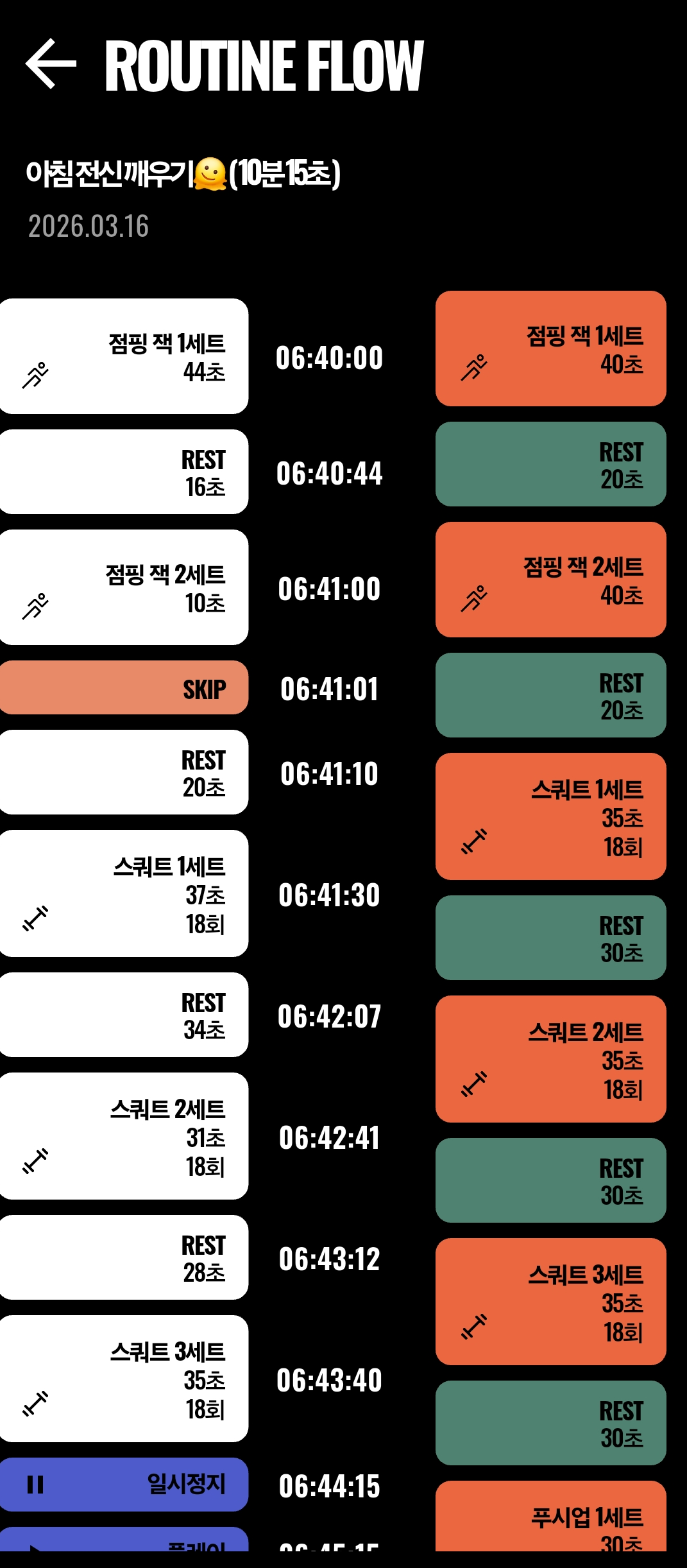
- Routine History: Shows the selected day's routine record and efficiency score, with a link to VIEW ROUTINE FLOW for the detailed timeline.
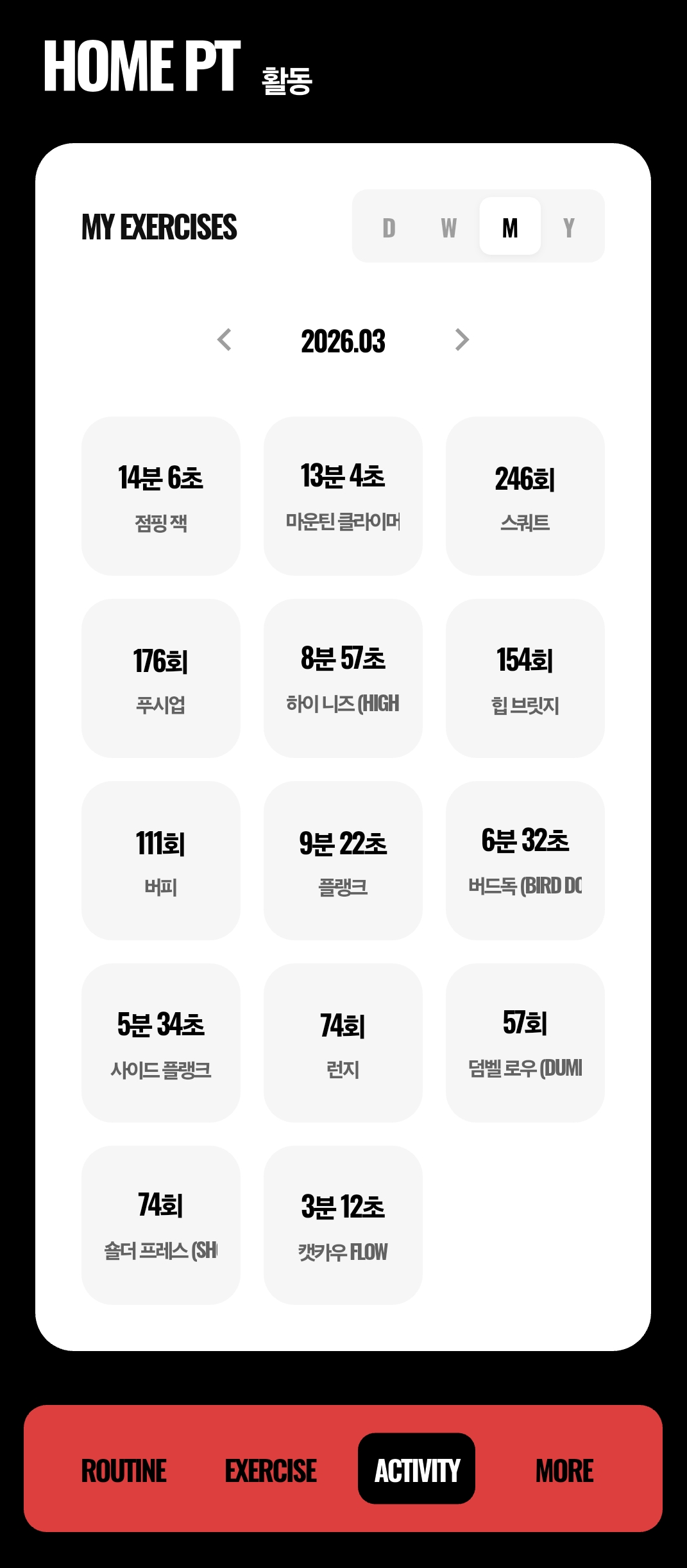
- My Exercises: Displays the exercises you performed most often by day, week, month, or year.
- Efficiency Score: The score reflects workout completion, rest, skips, and interruptions together.
7. Voice Control
Even when you cannot touch the app during a workout, you can still control the timer with your voice.
- Current support: The current implementation focuses on voice recognition command handling rather than spoken coaching through TTS.
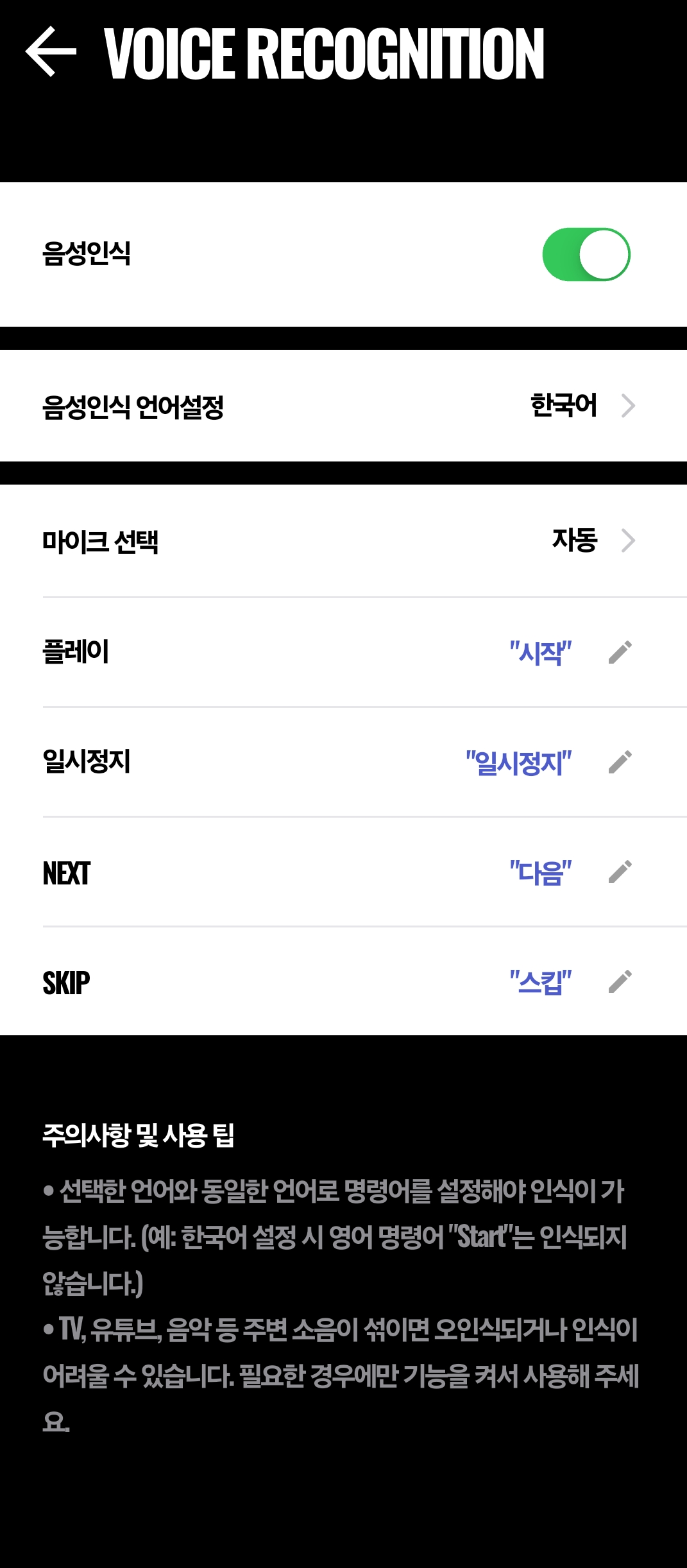
- Default commands: You can configure commands such as Start, Pause, Next, and Skip for hands-free control.
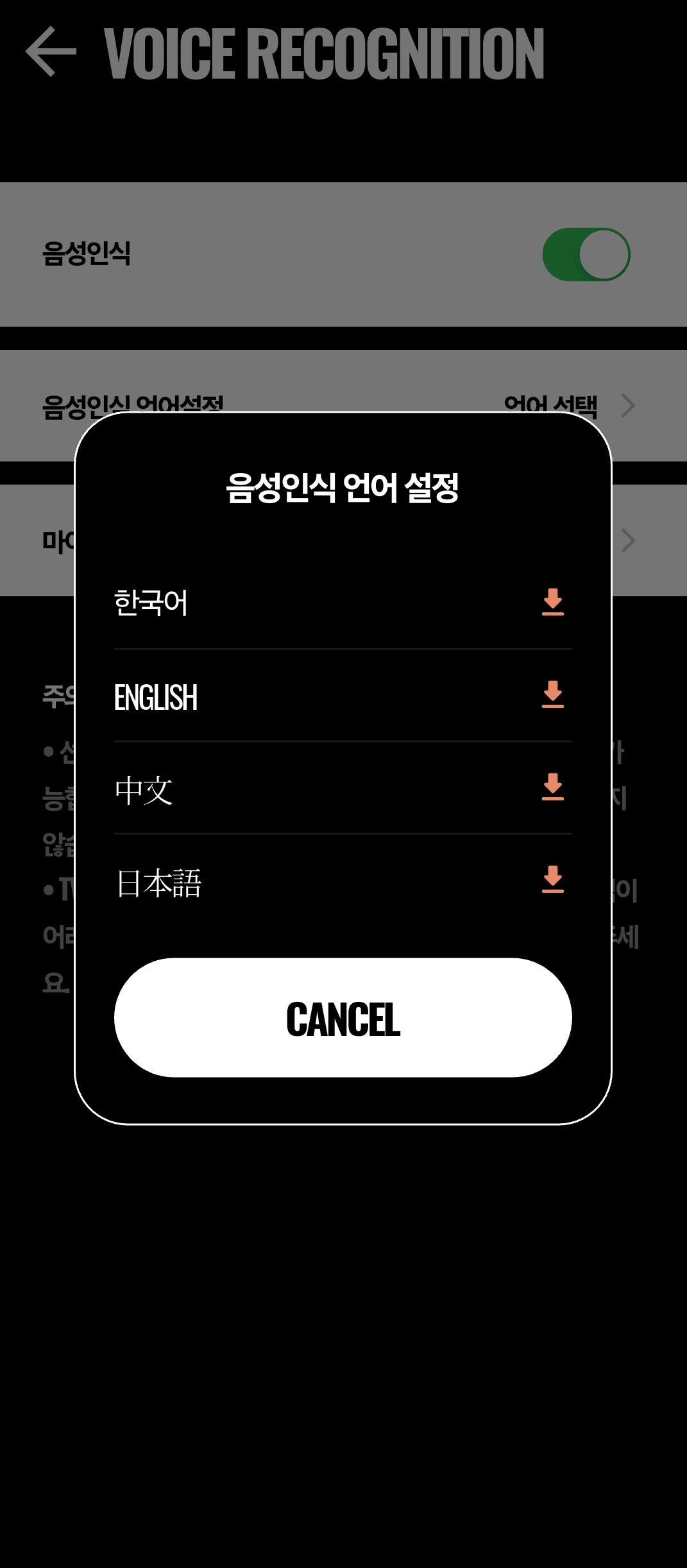
- Voice engine: HOME PT uses an offline, on-device speech recognition model and supports language-specific model downloads and microphone selection.
- Supported languages: Korean, English, Japanese, and Chinese are supported.
- Commands must be configured in the same language as the selected recognition language. For example, if Korean is selected, the English command "Start" will not be recognized.
- Background noise from TV, YouTube, or music can cause false positives or failed recognition. Turn the feature on only when you need it.
8. Backup and Restore After Sign-In
Keep months of routines and activity records safely backed up in the cloud.
- Multiple sign-in methods: Email, Google, Apple, Facebook, and Kakao sign-in are supported for data backup. The data management menu is shown only to signed-in users.
- Manual backup and restore: Data management currently works through manual backup and manual restore rather than always-on automatic sync. You can store your data in the cloud whenever you choose.
- Data protection: When restoring on a new device, the app compares the latest local update time and the latest remote backup time so that older data does not overwrite newer data.
9. FREE and PRO Plans
HOME PT keeps its core training experience broadly accessible while offering an upgrade path for users who want fewer restrictions.
- FREE Plan: Core features such as the interval timer, efficiency score backup, and both rep-based and timed exercise modes are available. However, FREE users can create up to two routines, and routines beyond that limit are locked for both playback and editing.
- PRO Upgrade (Lifetime): Removes premium restrictions such as the routine limit. The current guide describes the lifetime-style PRO upgrade flow rather than a subscription flow. Purchases are linked to the app store purchase system and support restore purchases after changing devices.